How To Register A Binance Account – Updated For 2026


Binance is one of the world's largest and most reputable cryptocurrency exchanges, handling hundreds of billions of USD in daily trading volume. It's an ideal platform for newcomers to the crypto space.
Sign up using this link to get 40% off trading fees:
Link: BINANCE
Referral ID: CRYPTOUNCLE
Overview of Binance Exchange
Binance is widely recognized as one of the largest and most reputable cryptocurrency exchanges in the world. It supports trading for over 500 different cryptocurrencies and enables fast, seamless transactions with a processing speed of up to 1.4 million orders per second. Some notable advantages of Binance include:
High Security: Advanced protection applied to registration, identity verification, data encryption, and more.
Stable Operations: Built on a robust multi-tier architecture to ensure system stability.
Multi-Device Support: Accessible via both web and mobile applications.
Extensive Language and Asset Support: Offers support for over 500 cryptocurrencies and up to 41 languages.
Types of Binance Accounts
Personal Account: For individual users.
Entity Account: For businesses and organizations.
Verified accounts benefit from:
Access to a wide range of cryptocurrencies.
Competitive trading fees.
Full platform features.
Asset protection through the SAFU fund (10% of trading fees are allocated to this fund).
How to Register a Binance Account on the Mobile App
Follow these steps to register your Binance account using your phone:
Step 1: Download the Binance app from Google Play (Android) or the App Store (iOS).
Step 2: Open the app → Tap Sign Up → Choose the account type (Individual or Entity) → Select Sign up with Email or Phone to proceed with your preferred registration method.
Referral ID: CRYPTOUNCLE –> Get 40% off trading
Step 3: Enter your email address or phone number → Create a password (must be at least 8 characters, including one uppercase letter and one number).

Step 4: Check the box to agree to the Terms of Service and Privacy Policy → Tap Create Personal Account.
Step 5: A verification code will be sent to your email or phone → Enter the code within 30 minutes → Tap Send to complete the registration.
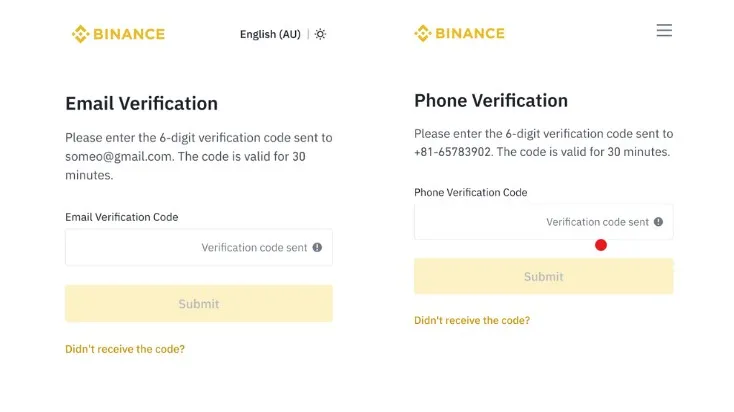
You’ll now have your Binance account ready for use on the mobile app.
How to Verify Your Identity (KYC) on the Binance Mobile App
Identity verification (KYC) is essential to unlock all features on Binance and to lift withdrawal limits. Here’s how to complete it on your mobile device:
Step 1: Log into your Binance account on the app → Tap Verify Now on the homepage.
If the prompt doesn't appear, go to Profile → Tap Action Required.
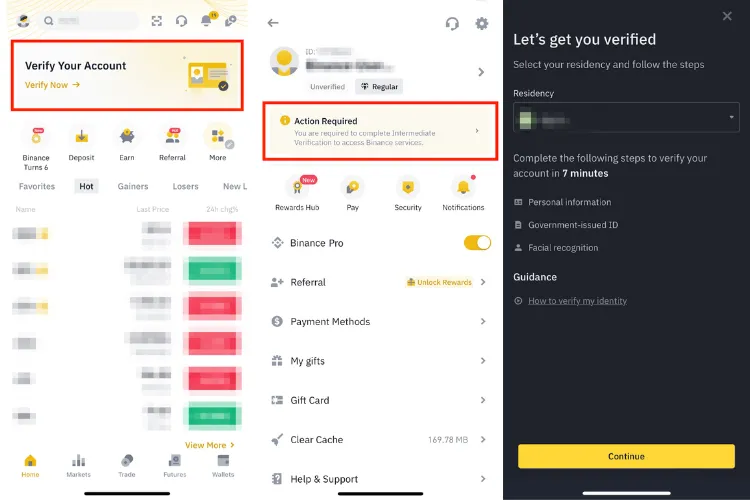
Step 2: Select your country of residence → Tap Continue.
Step 3: Enter your personal information exactly as it appears on your official ID.
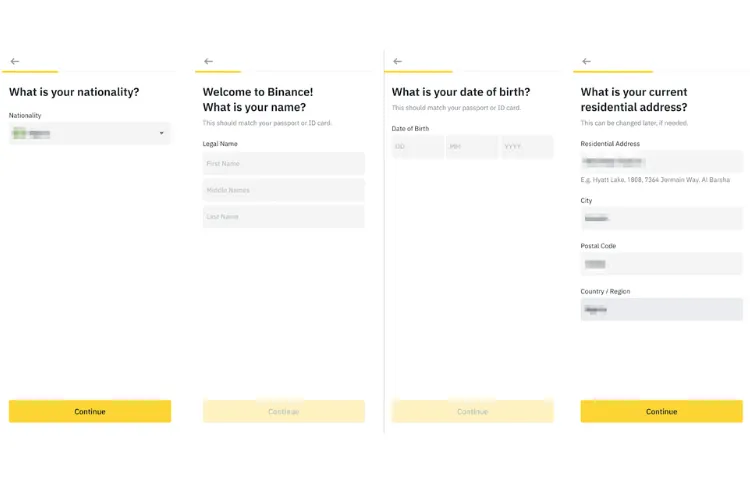
Step 4: Upload a photo of your identification document (you can use a National ID card, Citizen ID, or Passport).
Step 5: Complete facial verification by aligning your face within the frame and following the on-screen head movement instructions.
Step 6: Binance will take some time to review your submission. Once verification is complete, you’ll receive a confirmation email.
Note:
You can attempt identity verification up to 10 times within 24 hours.
If all 10 attempts fail, you must wait 24 hours before trying again.
Do not refresh or exit the app during the verification process.
How to Register a Binance Account on the Website
Follow these steps to create your Binance account via the official website:
Step 1: Visit the Binance account registration page.
Step 2: Select Sign up with Email or Phone → Enter your email address or phone number.
If you're registering a business account, click Sign Up for Entity Account → Then click Next.
Step 3: Create a password (must be at least 8 characters, including 1 uppercase letter and 1 special character).
Step 4: Enter a referral ID (if available) → Check the box to agree to the Terms of Service and Privacy Policy → Click Next.
Step 5: A verification code will be sent to your email or phone → Enter the code within 30 minutes → Click Send to complete your registration.
How to Verify Your Identity (KYC) on the Binance Website
Follow these steps to complete identity verification on the Binance website:
Step 1: From the Binance homepage, click on your Profile icon → Select Identification → Click Complete Now.
Step 2: In the next window, click Verify → Choose your country of residence → Enter your personal information (must match your ID documents) → Click Continue.
Step 3: Select the country that issued your ID → Choose the type of document you will use → Upload clear images of your ID (e.g., Passport, National ID, or Driver's License).
Step 4: Complete facial verification by centering your face within the frame and moving your head as instructed.
Step 5: Binance will review your submission. Once the verification is approved, you will receive a confirmation email.
Make sure not to refresh or close the browser during the process to avoid errors.
How to Enable Two-Factor Authentication (2FA) on Your Binance Account
Two-factor authentication (2FA) is essential to enhance the security of your Binance account. It includes Phone Verification and Google Authenticator (GA). Here's how to set them up:
🔐 Phone Verification
On the Binance app or website, go to your Profile → Select Security.
Tap Manage next to Phone Number.
A 6-digit verification code will be sent to your phone.
Enter the code to complete phone verification.
If you already verified your phone number during account registration, you can skip this step.
🔐 Google Authenticator (GA) Verification
Step 1: Download the Google Authenticator app on your phone.
Step 2: Open the Binance app → Go to Profile → Select Security.
Step 3: Under Authenticator App, tap Enable → A 16-character security key will appear.
Important: Save this key securely. You’ll need it to recover your Authenticator account on other devices.
Step 4: Open the Google Authenticator app → Choose to scan the QR code or manually enter the 16-digit key from Step 3 → Tap Continue → The app will generate a 6-digit code.
Step 5: Return to the Binance app → Enter the 6-digit code from Google Authenticator → Tap Submit to complete the setup.